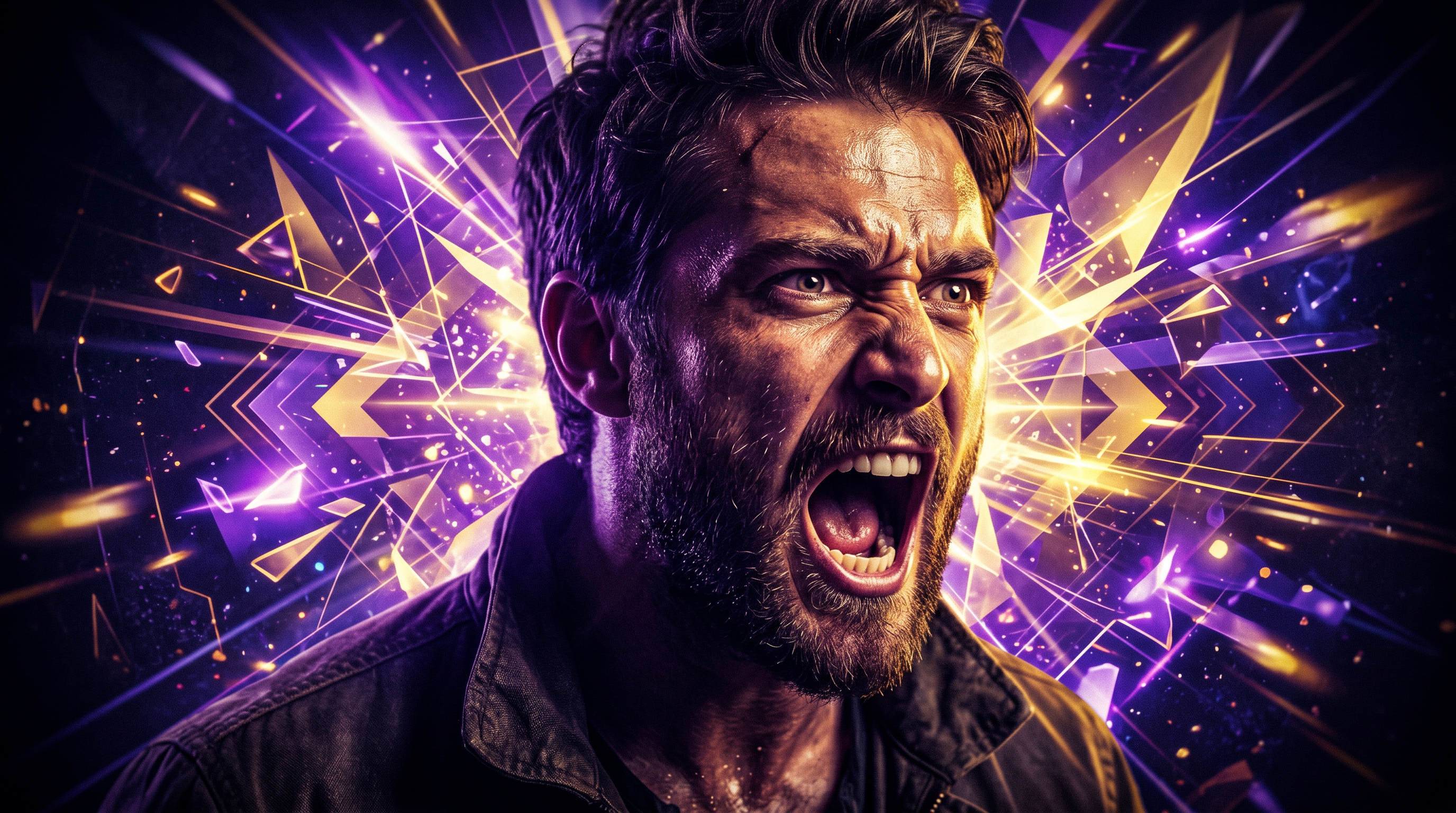
AI YouTube Thumbnail Design: A Creator’s Guide
AI YouTube thumbnail design lets you generate professional backgrounds, cut out your subject, and compose a polished thumbnail in minutes — without a design background or expensive software. Here’s how to do it right.
What Makes a YouTube Thumbnail Get Clicked
A great thumbnail answers one question before the viewer clicks: “Is this for me?” YouTube’s official thumbnail guidance, published in the YouTube Help Center, puts it this way: make your thumbnail “easy to understand, so that when people look at it the first time they’re saying ‘I know what’s going on in this video.’” That quote comes directly from Chucky Appleby, MrBeast’s thumbnail designer, in a video YouTube produced about their thumbnail creation process.
Three elements consistently drive clicks:
- High contrast — bright colors against dark backgrounds (or vice versa) stop the scroll. YouTube’s Creator Academy advises using “dynamic use of color and composition” while warning that “too much can overwhelm.”
- Expressive faces — human faces draw attention instinctively. MrBeast’s team deliberately shifted to including Jimmy Donaldson’s face in every thumbnail in 2019. Appleby explains: “We were branding the videos around him.” Their internal A/B tests found that expression choice matters at a granular level — testing 30 open-mouth vs. closed-mouth variants, all 30 with the closed mouth produced higher watch time.
- Minimal, readable text — YouTube itself recommends readable fonts and cautions against complex design. Appleby adds: “When you design your thumbnail in Photoshop, it’s very big. But when it’s actually on YouTube, it’s much, much smaller.” That scale gap kills thumbnails with small or cluttered text.
YouTube’s Help Center also confirms that 90% of the best-performing videos on YouTube have custom thumbnails — making this one of the highest-leverage things a creator can control.
YouTube’s Official Thumbnail Specs
Before generating anything, get the specs right. YouTube’s current official requirements (from the YouTube Help Center, support.google.com/youtube):
- Resolution: 3840 x 2160 px recommended (updated in early 2026 from the long-standing 1280x720 standard); minimum width is 640 px
- Aspect ratio: 16:9
- File size: Up to 50 MB on desktop, 2 MB on mobile
- Accepted formats: JPG, GIF, PNG
For most creators, 1280x720 at 72–96 DPI still renders cleanly on phones and laptops. The 4K spec matters most on large-screen playback. If you’re exporting from an AI image generator, export at the highest resolution available and let YouTube handle the rest.
One practical constraint: custom thumbnails cannot be applied to YouTube Shorts. Shorts pull a frame from the video automatically.
How to Use AI to Generate Thumbnail Backgrounds and Subjects
AI image generators give you a blank canvas that doesn’t exist in stock photo libraries. Instead of searching for a royalty-free photo that almost fits, you describe exactly what you need.
What works well:
- Cinematic or dramatic backgrounds (dark storm sky, neon-lit city at night, fantasy landscape)
- Abstract or stylized backgrounds that let a subject pop clearly
- Object-focused compositions (a product, a prop, a concept visual) when you don’t want a face-forward thumbnail
Prompting tips that save iteration time:
- Lead with the visual mood: “dramatic dark studio background, single spotlight, deep shadows”
- Specify aspect ratio in your prompt: “16:9 composition, widescreen”
- Avoid asking for text in AI-generated images — AI text is unreliable. Add text in a separate layer after.
- Generate multiple variations (3–5 per concept) before committing to one direction
The AI image generator in Studio AI lets you generate backgrounds directly — no account needed to start, and the output is yours to use.
Generate Thumbnail Backgrounds Free →
Using Background Removal to Layer Your Face or Subject
The core of a face-forward thumbnail workflow is the composite: your face (or product) over a generated background. To do that cleanly, you need to remove the original background from your photo.
Background removal is where a lot of creators lose time. Cutting out hair, flyaways, or complex edges manually in Photoshop takes 20+ minutes and still often looks rough at thumbnail scale. AI-powered background removers solve this in seconds.
The key things to look for in a background remover for thumbnails:
- Edge accuracy on hair — the hardest detail to get right
- No fringing — a color halo from the original background that makes the composite look pasted
- Transparent PNG output — so you can layer over anything
Remove your background in seconds: Studio AI’s background remover cuts your subject out precisely — hair, edges, everything — so you can layer it over any AI-generated thumbnail background. Remove Background Free →
Once your subject is on a transparent PNG, compositing is straightforward in any design tool — Canva, Figma, Photopea (free), or Adobe Express.
Text Overlay Rules for Thumbnails
Text on a thumbnail has one job: reinforce the visual hook or add context that makes the click feel urgent. It shouldn’t explain the whole video.
The mobile constraint is real. YouTube displays thumbnails at roughly 100px wide in the mobile app’s home feed. At that scale, a six-word sentence becomes unreadable. YouTube’s own guidance is blunt: use “a font that’s easy to read” and “try not to make the design too complex.” Appleby reinforces this: the size difference between your Photoshop canvas and the live thumbnail catches most creators off guard.
Practical rules that hold up:
- 3–5 words maximum on the thumbnail itself. Save full context for the title.
- High-contrast text treatment: white text with a thick black outline, or dark text on a bright solid block. Skip thin drop shadows — they disappear on mobile.
- One focal point: either a face OR bold text dominates. When both compete for attention at equal weight, neither wins.
- Font weight: bold or extra-bold. Light or medium weights vanish at thumbnail scale.
Before/After: The AI Thumbnail Design Workflow
Here’s the full process from scratch to finished thumbnail, using AI tools:
Step 1 — Define the hook Write one sentence: what emotion or outcome does this video promise? That’s your thumbnail concept. Don’t open a design tool until you can answer this.
Step 2 — Generate your background Use an AI image generator with a specific prompt. “Dramatic cinematic kitchen background, moody lighting, dark tones” is better than “kitchen.” Export at 1280x720 or higher.
Step 3 — Take your photo Shoot against a plain wall or single-color background. Good light on your face matters more than the background since you’re removing it anyway. A phone camera is sufficient.
Step 4 — Remove the background Upload to Studio AI’s background remover. Download the transparent PNG. Check the edges — if hair or fine details look rough, try a slightly different crop of the original photo.
Step 5 — Composite Place your transparent PNG over the AI background in your design tool. Scale and position so your face is large (takes up at least 40–50% of the thumbnail height). Faces that are too small don’t register on mobile.
Step 6 — Add text Maximum 3–5 words. Bold font, high contrast treatment. Check at 10% zoom in your design tool — that approximates mobile thumbnail size.
Step 7 — Export Save as JPG or PNG. Keep file size under 2 MB for mobile compatibility (under 50 MB for desktop upload).
A/B Testing Thumbnails in YouTube Studio
Making a better thumbnail is one thing. Knowing which thumbnail is better is another. YouTube Studio has a native Test and Compare feature (accessed via the A/B testing option inside a video’s edit panel) that lets you test up to three thumbnails simultaneously.
How it works, per YouTube’s official documentation:
- Upload up to 3 thumbnail variants
- YouTube serves different versions to different viewers
- At the end of the test, the variant with the highest watch time is promoted to all viewers — not just highest clicks
- If there’s no clear winner, the first uploaded thumbnail stays as the default
- Tests typically run for about two weeks
Watch time as the winning metric, not clicks, is worth noting. A thumbnail that drives clicks but then disappoints (because the video doesn’t deliver what the thumbnail implied) loses to one that drives slightly fewer but more committed viewers. This is consistent with YouTube’s broader guidance that accuracy between thumbnail and content protects discoverability.
Eligibility: you need YouTube advanced features enabled, and the feature is desktop-only via YouTube Studio. It’s unavailable for Shorts, Made for Kids videos, or private videos.
Design Your First AI Thumbnail
The workflow above — generate a background, remove yours, composite, add text, test — takes under 30 minutes once you’ve done it once. The AI handles the parts that used to require a designer or expensive software. You bring the concept and the face.
Generate Thumbnail Backgrounds Free →
FAQ
What size should a YouTube thumbnail be? YouTube’s current recommended resolution is 3840 x 2160 px with a 16:9 aspect ratio, updated in early 2026. The long-standing 1280x720 standard still works well for most playback contexts. Minimum width is 640 px. File formats accepted are JPG, GIF, and PNG. Desktop upload limit is 50 MB; mobile is 2 MB.
Do YouTube thumbnails affect how many views a video gets? Yes, indirectly. YouTube’s algorithm factors in click-through rate (CTR) and watch time when deciding how widely to surface a video. YouTube’s Help Center notes creators should monitor CTR in YouTube Analytics under the Reach tab to understand how thumbnails are performing.
What makes a thumbnail stand out in the feed? High contrast between subject and background, expressive faces, and minimal readable text are the consistently documented factors. YouTube’s own guidance cites “rule of thirds” composition and “dynamic use of color” as effective starting points. Chucky Appleby, MrBeast’s thumbnail designer, emphasizes visual clarity above all: viewers should understand what the video is about in a single glance.
How many thumbnails should I test? YouTube Studio’s Test and Compare feature supports up to 3 variants per test. MrBeast’s team generates approximately 50 concepts per video before selecting finalists, but that scale isn’t realistic for most creators. Testing 2–3 meaningfully different compositions (different background mood, different facial expression, different text treatment) gives useful signal without overcomplicating the process.
Can I use AI-generated images as YouTube thumbnails? Yes. YouTube’s content policies govern what’s allowed in thumbnails (no nudity, hate speech, or misleading content), not how images are made. AI-generated backgrounds and composites are widely used by creators. Ensure the final thumbnail accurately represents your video’s content — YouTube’s guidance is explicit that misleading thumbnails hurt discoverability.
Why does my thumbnail look great on my computer but bad on YouTube? Scale. YouTube displays thumbnails at roughly 100px wide in the mobile home feed. Chucky Appleby identified this as a common mistake: designing at full canvas size, where everything looks clear, and then discovering the thumbnail is unreadable at actual display size. Design at full resolution, but always check your thumbnail at 10% zoom before exporting.
Sources: YouTube Help Center — Thumbnail & title tips; YouTube Help Center — Custom thumbnail specs; YouTube Help Center — A/B test titles and thumbnails; YouTube shares insights into how MrBeast’s team creates thumbnails — Social Media Today; VidIQ — YouTube Thumbnail Design Tips; TubeBuddy — Tips to Help Your Custom Thumbnails Pop