How to Remove Background from Image Free (Without Photoshop)
You can remove a background from any image free, right in your browser, in under 10 seconds. No Photoshop license. No manual selection with the lasso tool. Modern AI background removers handle hair, fur, and complex edges automatically — tasks that used to take a skilled editor 20 minutes now take a single click.
This guide covers how AI background removal actually works, when it succeeds and when it struggles, and exactly how to get a clean transparent PNG from any photo.
When You Need a Transparent Background
Transparent backgrounds solve a specific problem: you want your subject on a new background, or no background at all. Here’s where that comes up constantly.
| Use Case | Why Transparent Background Matters |
|---|---|
| Etsy product listings | White or neutral background required; shows item without visual clutter |
| YouTube thumbnails | Layer subject over bold colors or text without a background box |
| Social media graphics | Overlay headshots or products onto branded templates in Canva or Figma |
| Print-on-demand designs | PNG with transparency drops cleanly onto T-shirts, mugs, and totes |
| Sticker and decal files | Die-cut stickers require a precise transparent edge around the subject |
| eCommerce product shots | Amazon and Shopify recommend pure white backgrounds for main images |
| Logo and brand assets | Logos need transparency to work across any colored surface |
The output format that carries transparency is PNG. JPEG does not support a transparency channel — always export as PNG when you need a transparent background.
Remove any background free: Studio AI’s background remover handles hair, fur, and complex edges automatically. Upload your image and get a transparent PNG in seconds. Remove Background Free →
How AI Background Removal Actually Works
AI background removers use a two-stage process: semantic segmentation followed by alpha matting. Understanding this helps you know why some images come out perfect and others need a quick fix.
Stage 1 — Semantic segmentation. The AI classifies every pixel in your image as either “foreground” (your subject) or “background.” It does this by recognizing objects — a person, a product, a pet — not by color difference. According to LearnOpenCV’s documentation on foreground-background separation, this is one of the three foundational computer vision tasks alongside classification and object detection.
Stage 2 — Alpha matting. Segmentation alone isn’t precise enough for edges like flyaway hair, fur, or semi-transparent fabric. Here the AI switches to alpha matting, which assigns each edge pixel a value between 0 and 1 — representing partial transparency rather than a hard on/off cut. As LearnOpenCV’s image matting documentation explains, this is what separates a clean hair cutout from a jagged halo.
Modern tools combine both stages automatically. You don’t configure anything — the model detects the subject, traces the segmentation boundary, and refines edges with matting in a single pass.
What Makes a Good AI Background Remover
Not all free tools deliver the same result. Three things separate the good ones from the frustrating ones.
Edge quality on hair and fur. This is the hardest problem in background removal. A tool that handles a crisp product on a white background might completely mangle a curly-haired portrait or a fluffy cat. Look for tools that specifically use alpha matting — these calculate per-pixel opacity rather than making a binary cut.
Output resolution. Several free tools give you a low-resolution preview and charge for the full-size download. Remove.bg’s free tier outputs at reduced resolution — a real frustration for Etsy sellers who need high-res product images, as noted repeatedly in r/Etsy and r/ecommerce threads. Studio AI delivers full-resolution output.
No watermark on the result. Some free tools stamp a watermark on the downloaded PNG, which defeats the purpose. Always confirm the output is clean before building it into a workflow.
Batch processing. If you’re processing product catalogs or a series of thumbnails, one-at-a-time upload-and-download gets tedious fast. Reddit threads on r/ecommerce surface this as the top complaint about free tools — the volume is the problem, not any single image.
Step-by-Step: Remove a Background with Studio AI
Step 1 — Open the tool. Go to Studio AI’s background remover. You’ll see a simple upload area.
Step 2 — Upload your image. Click “Upload Image” or drag your file directly onto the upload zone. Studio AI accepts JPG, PNG, and WebP. For best results, use an image where your subject is well-lit and visually distinct from the background.
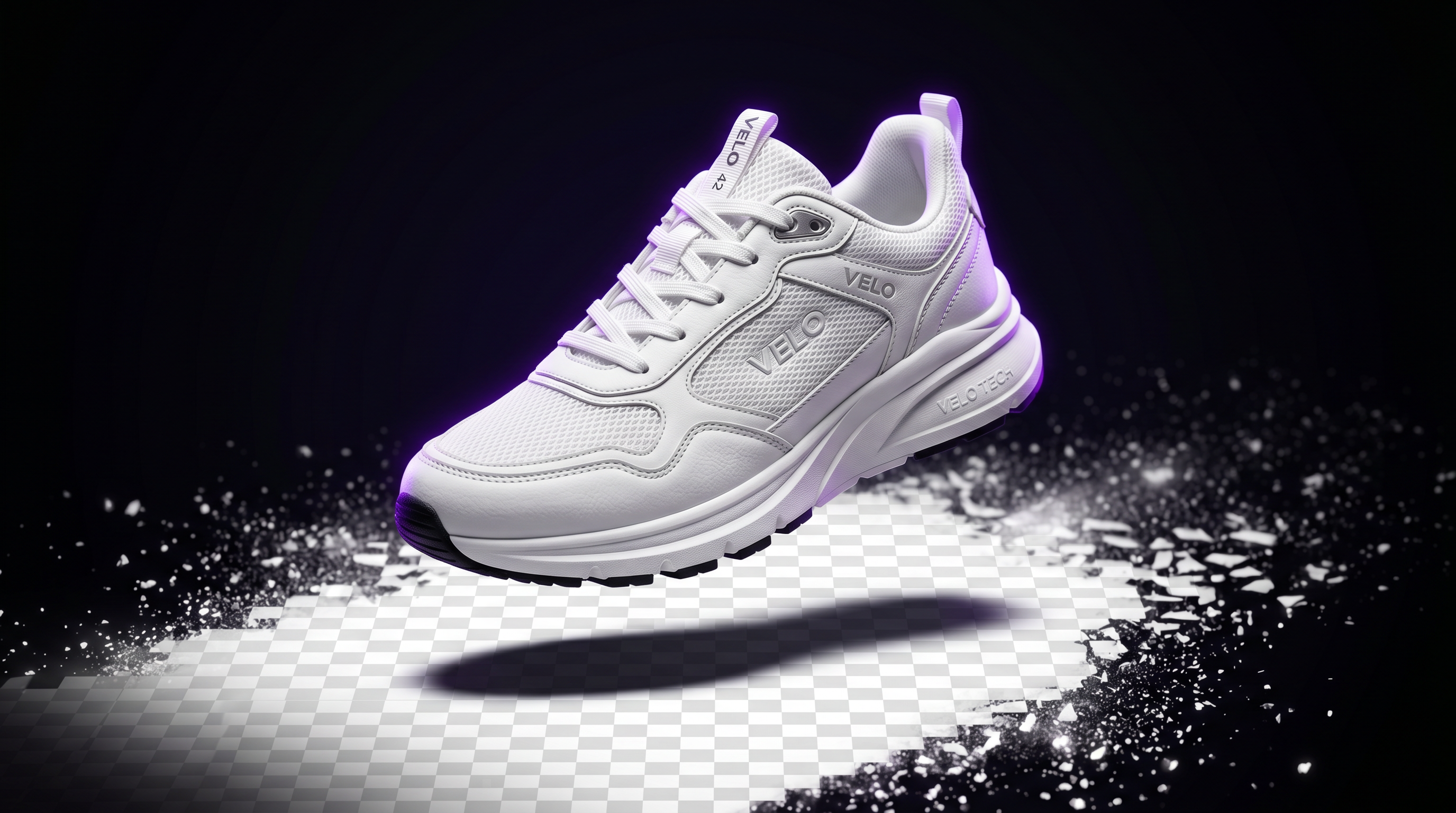
Step 3 — Let the AI process. The tool runs segmentation and edge matting automatically. Processing takes a few seconds. You’ll see the result appear with the background replaced by a checkerboard pattern — this represents transparency.
Step 4 — Check the edges. Zoom into the edges, especially around hair, fur, or intricate shapes. A good result shows a smooth, natural edge with no halo (a fringe of the original background color clinging to the subject).
Step 5 — Download as PNG. Click “Download.” The file saves as a PNG with a transparent background channel. This file is ready to drop into Canva, Figma, Photoshop, or your Etsy listing editor.
After this step, you have a clean PNG you can place on any background color or use in any design tool without a white box around it.
Common Mistakes and How to Fix Them
Problem: Subject and background are similar colors. If your red product is photographed on a reddish background, the AI struggles to find the boundary. Fix: reshoot on a contrasting background — white, gray, or a color clearly distinct from your subject. If you can’t reshoot, use the manual refinement brush after the AI pass.
Problem: Halo or fringe around edges. A halo appears when matting doesn’t fully separate edge pixels from the original background. This is most common with low-contrast edges or low-resolution source images. Use the refinement brush if the tool provides one, or increase your source image resolution before upload.
Problem: Missing sections of the subject. If the AI removes part of your subject — a hand, a thin strap, a transparent bottle — it misclassified that region as background. Use the manual addition brush to restore the missing area.
Problem: Hair looks chunky or clipped. The tool used hard segmentation instead of alpha matting for the edges. Alternatively, increase image resolution before uploading — low-resolution source images make accurate matting harder.
Problem: Output is low resolution. You’re on the free tier of a tool that downsizes free output. Studio AI provides full-resolution results.
Remove Your First Background Free
Background removal used to mean either paying for Photoshop or spending an afternoon on manual selection. AI has changed that. You get a precise transparent PNG in seconds — including hair, fur, and fine edges.
Frequently Asked Questions
How do I remove a background from an image for free?
Upload your image to an AI background remover like Studio AI’s background remover tool. The AI automatically detects your subject, separates it from the background, and lets you download a transparent PNG — no manual selection required. The whole process takes under 10 seconds.
What is the best free AI background remover?
The best option depends on your use case. Studio AI’s background remover handles complex edges including hair and fur and delivers full-resolution output. Remove.bg is well-known but limits free-tier downloads to reduced resolution. For Etsy sellers and content creators who need full-res transparent PNGs without watermarks, Studio AI is a strong choice.
Can I remove a background without Photoshop?
Yes. AI background removers work entirely in your browser — no software to install, no subscription required to try. You upload your image, the AI processes it in seconds, and you download a clean PNG.
Why does my background removal have a halo around the edges?
A halo appears when the AI’s matting step doesn’t fully separate edge pixels from the original background. This is most common with low-contrast edges or low-resolution source images. Use the refinement brush if the tool provides one. Increasing your source image resolution before upload also helps.
What file format is a transparent background image?
PNG. Transparent backgrounds require a file format that supports an alpha channel — PNG does, JPEG does not. When you download your background-removed image, always save it as PNG.
Can I remove backgrounds from product photos in bulk?
Some tools offer batch processing for removing backgrounds from multiple images at once. If you’re processing a product catalog, look for a tool with batch upload. For occasional use, single-image upload works fine and takes under a minute per image.