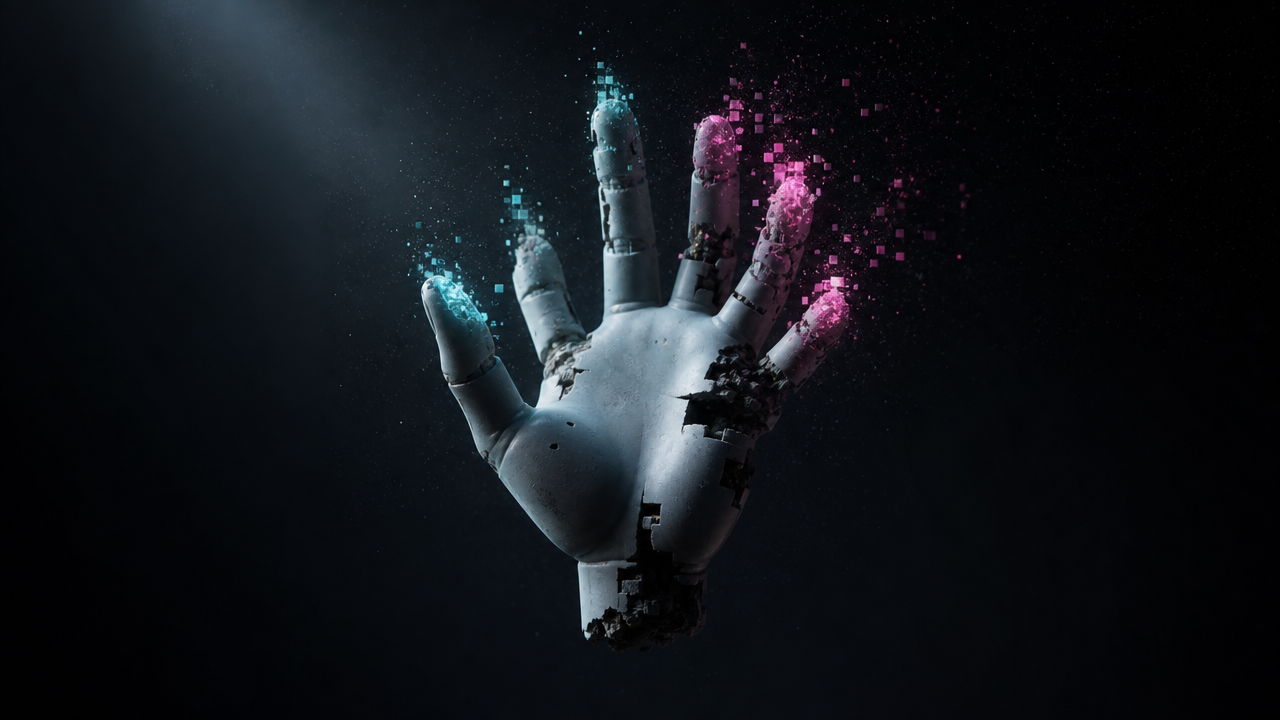
Fix AI Hands, Text, and Faces With Inpainting
If you’re rerolling the whole image because the hand has six fingers, you’re wasting 90% of the work the model already got right. The composition is fine. The light is fine. The face is fine. One region is broken, and the fix is to paint over only that region. That’s inpainting, and in 2026 the workhorse for it is Flux Fill from Black Forest Labs, run inside ComfyUI through the ComfyUI-Flux-Inpainting custom node.
This guide is the cheat sheet for the three failure modes that still trip every modern image model: hands, text, and faces. Each section gives you what the AI gets wrong, how to spot it in five seconds, and the exact prompt plus node setup to fix it in about two minutes.
The pipeline is the same every time. Mask the broken region. Re-prompt only that region. Run Flux Fill at low denoising strength so the surrounding pixels stay locked. Done.
How to Fix AI Hands With Flux Fill Inpainting
The fix: mask the hand, prompt for anatomy, run Flux Fill at 0.4–0.6 denoise. The lower the denoise, the more the model preserves the original pose; the higher, the more it redraws.
Hands are the highest-frequency failure across every diffusion model since 2022. The reason is structural: hands occupy a small pixel area but contain extreme articulation (15 joints, five fingers, two opposable axes), so the loss function under-weights them during training. FLUX.2 reduced the failure rate dramatically over Stable Diffusion 1.5, but a wrong-thumb generation is still a once-per-batch event.
Spot the failure in five seconds: count the fingers, then check whether the thumb is on the correct side of the hand. If either fails, mask and inpaint.
The mask. Open the image in ComfyUI’s Load Image node, right-click, and use the built-in mask editor. Brush over the entire hand plus a 10–15 pixel feather around it. The feather is what makes the inpaint blend; a hard edge gives you a visible seam.
The prompt. Paste this into the positive conditioning of the Flux Fill node:
perfect human hand, anatomically correct, five fingers, natural finger spacing, correct thumb position, [original style descriptor from your first prompt], soft studio lighting matching sceneThe trailing style descriptor is the part most people skip. If your original prompt was “oil painting of a violinist, baroque style”, append “oil painting, baroque” to the inpaint prompt. Otherwise Flux Fill defaults to a photoreal hand pasted into a baroque painting.
The denoising number. Start at 0.5. If the hand still looks off, raise to 0.6. If the new hand doesn’t match the wrist or sleeve, drop to 0.4. The official ComfyUI inpainting tutorial covers the node graph in detail; the Flux-specific node lives in the ComfyUI-Flux-Inpainting repo with installation steps in its README.
Try it free: the Studio AI Image Editor runs Flux-class inpainting in your browser with no ComfyUI install, no GPU, no node graph. Mask the bad hand, type “perfect human hand, five fingers”, regenerate. Fix it free →
How to Fix Broken AI Text in Generated Images
The fix: in 2026, broken text is rare. When it shows up, mask the text region and re-prompt; for absolute control, drop to a typography overlay in Photopea.
FLUX.2, Imagen 4, and Gemini Image render legible text reliably for short phrases — signage, book covers, product labels. The failure mode you’ll still see is on long phrases (more than ~6 words), small text inside busy compositions, or stylized fonts the model hasn’t seen often. Letters morph into glyphs. Kerning collapses. The word cafe becomes cofa.
Spot it in three seconds: read the text out loud. If you can’t, it’s broken.
The inpaint approach. Mask the text region tightly — no feather around the letters because text has hard edges. Paste the prompt:
clean readable text reading "EXACT WORD HERE", sans-serif font matching scene, sharp letter edges, correct kerning, no glyph artifactsQuote the exact word you want. Models follow quoted text more reliably than unquoted descriptions. Run Flux Fill at 0.7 denoise — text is one of the few cases where you want a full redraw of the masked region, not a soft blend.
When to abandon the inpaint and use Photopea. If after three Flux Fill passes the text is still glyphing, stop. Open the image in Photopea, erase the bad text, type the correct word in the actual font you want. Two minutes, zero AI guessing. For book covers, product packaging, and any commercial work where the text is the thing — Photopea wins. For ambient signage in a wide shot, Flux Fill is fine. Choosing the wrong image generator upstream also matters; the free AI image generator comparison covers which models render text least badly out of the gate.
How to Fix AI Faces With Adetailer or SAM Masking
The fix: for portraits, face-detail upscale via Adetailer in Stable Diffusion Forge. For broader scenes, Segment Anything (SAM) auto-mask plus Flux Fill.
Faces fail two ways. In close-up portraits, the face renders fine but the eyes are slightly asymmetric or the teeth are arranged like piano keys. In wide shots, the face occupies maybe 80×80 pixels of a 1024×1024 canvas — not enough resolution for the model to render features at all, so you get a smudge.
For the close-up failure mode, run Adetailer. It auto-detects the face, crops it, regenerates the cropped region at full resolution, and pastes it back. The Adetailer extension for Forge is the fastest face-fix workflow that exists; it adds about 20 seconds per image and fixes 90% of subtle eye/teeth/skin failures without any manual masking.
For the wide-shot smudge, ComfyUI plus SAM is the answer. Drop the SAM Detector node, click on the face in the preview, and SAM auto-generates a precise mask of just the face region. Pipe the mask into Flux Fill with this prompt:
detailed human face, [original subject descriptor — e.g. woman in her 30s], natural skin texture, symmetric eyes, defined eyelashes, realistic teeth, [original lighting], [original style]Run at 0.55 denoise. The full Flux Fill node graph plus SAM mask wiring is documented in the ComfyUI inpainting tutorial.
If you’re picking one face-fix workflow this week and you don’t already have ComfyUI set up: install Adetailer in Forge first. SAM plus Flux Fill is more powerful, but it’s a 30-minute setup against Adetailer’s five-minute install.
Fix the Broken Region, Keep the Good Image
The 2026 failure rate on AI images is around one bad region per generation, not one bad image per generation. Reroll-until-perfect was the right strategy in 2023 when you were also fighting bad composition, bad lighting, and bad anatomy at the same time. Now it’s just expensive.
Mask. Re-prompt. Inpaint. Two minutes per fix beats forty seconds per reroll once you account for the third reroll, and the fourth.
Fix Your Next Broken Image in Two Minutes
The Studio AI Image Editor wraps Flux-class inpainting into a browser tool. No ComfyUI install, no Python environment, no node graph to wire. Upload the image, brush the broken region, type what should be there, regenerate.
Fix Broken Hands and Faces Free →
Frequently Asked Questions
What’s the best AI tool to fix bad hands in generated images?
Flux Fill from Black Forest Labs, run inside ComfyUI through the ComfyUI-Flux-Inpainting custom node, is the current workhorse for fixing AI-generated hands. Mask the hand, prompt for “perfect human hand, anatomically correct, five fingers”, and run at 0.4–0.6 denoising strength. For a no-install option, the Studio AI Image Editor runs the same class of inpainting in a browser.
Why does AI keep getting hands wrong?
Hands occupy a small pixel area relative to the rest of the image but contain extreme articulation — 15 joints across five fingers with two opposable axes. The loss function during model training under-weights small high-detail regions, so hands learn slower than faces or torsos. FLUX.2 and similar 2026 models reduced the failure rate substantially but didn’t eliminate it.
Can I fix AI text without redrawing the whole image?
Yes. Mask only the text region, re-prompt with the exact word in quotes (“EXACT WORD HERE”), and run Flux Fill at 0.7 denoise. If three inpaint passes still produce glyph artifacts, switch to Photopea: erase the bad text, type the correct word in the font you want. Two minutes, zero guessing.
What’s the difference between Adetailer and Flux Fill for faces?
Adetailer auto-detects faces and runs an automatic crop-regenerate-paste cycle inside Stable Diffusion Forge. It fixes the most common face failures (asymmetric eyes, distorted teeth) without manual masking, in about 20 seconds. Flux Fill plus SAM masking is more controllable and works for wide-shot smudges where Adetailer’s auto-detection misses, but it requires manual mask placement and a ComfyUI install.
Do I need a GPU to run Flux Fill inpainting locally?
Yes. Flux Fill needs roughly 12GB of VRAM for full-precision inference and around 8GB for quantized GGUF builds. If you don’t have a 30-series or 40-series Nvidia card with at least 8GB VRAM, run inpainting in a hosted browser tool instead — the Studio AI Image Editor is the no-GPU path.