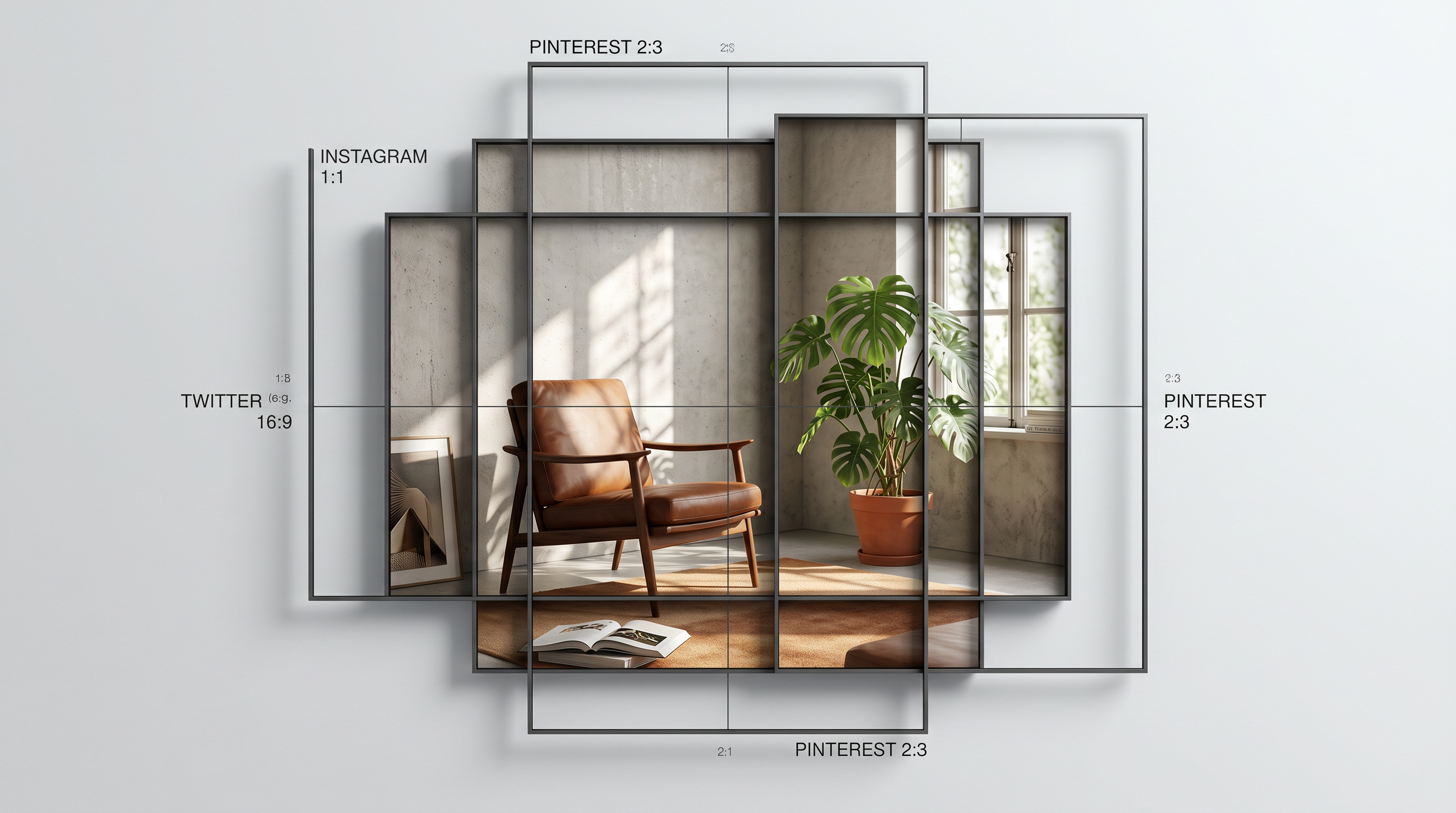
How to Resize Images for Social Media Free in 2026: The Complete Size Guide
Most image size guides give you a table and call it done. This one goes further: it explains why each platform uses the sizes it does, where things break in practice, and how to handle the whole workflow without paying for anything.
If you’ve ever posted an image that looked perfect in your editor and embarrassing on Instagram, this is the fix.
Why Wrong Image Sizes Actually Hurt You
This isn’t cosmetic. Platform algorithms deprioritize low-quality posts, and compression artifacts are a signal of low quality.
Instagram: Upload an image smaller than 1080px wide and Instagram will stretch it to fit, then apply its own compression on top. The result is a blurry, blocky image that performs worse in the feed. Creators and social media researchers have documented that Instagram’s algorithm tends to favor high-quality visual posts. Blurry content gets less reach.
YouTube thumbnails: YouTube displays thumbnails at very different sizes depending on context: 480×270px on mobile browse, up to 1280×720 on desktop channel pages. If your thumbnail has fine text at the bottom, it will be illegible on mobile. This isn’t a compression issue. It’s a scale issue. Design to the smallest display size, not the largest.
LinkedIn: LinkedIn compresses images significantly, more aggressively than Instagram or Twitter. Images uploaded without proper dimensions get double-compressed: first to fit LinkedIn’s display container, then as part of their CDN compression. The result is muddy, washed-out images that look far worse than what you created. LinkedIn also crops profile pictures to a circle, which surprises designers who’ve carefully composed a square headshot.
The 2026 Social Media Image Size Reference Table
Platform display specs shift constantly. These dimensions and file size limits are current as of April 2026; verify the platform’s own docs before launching anything important, especially the file size caps. Pixel dimensions tend to be more stable than max file sizes, which platforms quietly adjust.
| Format | Dimensions | Aspect Ratio | Max File Size |
|---|---|---|---|
| Feed post (square) | 1080 × 1080px | 1:1 | 30MB |
| Feed post (landscape) | 1080 × 566px | 1.91:1 | 30MB |
| Feed post (portrait) | 1080 × 1350px | 4:5 | 30MB |
| Story / Reel frame | 1080 × 1920px | 9:16 | 30MB |
| Reel cover image | 1080 × 1920px | 9:16 | 8MB |
| Profile picture | 320 × 320px | 1:1 | n/a |
| Format | Dimensions | Aspect Ratio | Max File Size |
|---|---|---|---|
| Feed post | 1200 × 630px | 1.91:1 | 30MB |
| Story | 1080 × 1920px | 9:16 | 4GB (video); 8MB (photo) |
| Cover photo | 820 × 312px | ~2.63:1 | n/a |
| Event banner | 1920 × 1005px | ~1.91:1 | n/a |
| Profile picture | 170 × 170px (displayed) | 1:1 | n/a |
Twitter / X
| Format | Dimensions | Aspect Ratio | Max File Size |
|---|---|---|---|
| In-feed post image | 1200 × 675px | 16:9 | 5MB (JPG/PNG) |
| Profile picture | 400 × 400px | 1:1 | 2MB |
| Header / banner | 1500 × 500px | 3:1 | 5MB |
| Format | Dimensions | Aspect Ratio | Max File Size |
|---|---|---|---|
| Post image | 1200 × 627px | 1.91:1 | 5MB |
| Company page cover | 1128 × 191px | ~5.9:1 | 2MB |
| Personal profile banner | 1584 × 396px | 4:1 | 8MB |
| Profile picture | 400 × 400px | 1:1 (displayed as circle) | 8MB |
YouTube
| Format | Dimensions | Aspect Ratio | Max File Size |
|---|---|---|---|
| Video thumbnail | 1280 × 720px | 16:9 | 2MB |
| Channel art | 2560 × 1440px | 16:9 | 6MB |
| Profile picture | 800 × 800px | 1:1 | 4MB |
TikTok
| Format | Dimensions | Aspect Ratio | Max File Size |
|---|---|---|---|
| Profile picture | 200 × 200px | 1:1 | n/a |
| Video (vertical) | 1080 × 1920px | 9:16 | 287.6MB |
| Video (landscape) | 1920 × 1080px | 16:9 | 287.6MB |
| Format | Dimensions | Aspect Ratio | Max File Size |
|---|---|---|---|
| Standard pin | 1000 × 1500px | 2:3 | 20MB |
| Square pin | 1000 × 1000px | 1:1 | 20MB |
| Long pin | 1000 × 2100px | 1:2.1 | 20MB |
| Board cover | 800 × 450px | 16:9 | n/a |
The Safe Zone Concept: Why You Should Design Smaller
Every platform crops and clips images differently depending on where they appear. A YouTube thumbnail looks different in search results, in the subscription feed, and in the video player sidebar. A LinkedIn post image displays differently in desktop feed vs. mobile feed vs. the post itself.
The safe zone principle: design your most important content (faces, text, CTAs) within the central 80% of your canvas. The outer 10% on each side is the danger zone where content gets cropped, compressed to near-invisibility, or hidden behind UI elements (like Instagram’s profile icon overlay on Stories).
Practical rule: if you wouldn’t be upset if the outer edges of your image were cut off, you’ve applied the safe zone correctly. Critical text should never live within 100px of any edge on a 1080px-wide canvas.
Free Tools to Resize Images
You don’t need a paid tool for resizing. Here’s what each free option is best for:
Our background remover tool: if you’re removing a background before resizing (for product photos, profile pictures, or transparent-layer exports), do the background removal first, then resize. Doing it the other way introduces compression artifacts around the cutout edges.
Our color palette generator: useful for maintaining brand color consistency across sizes. When you export to multiple dimensions, run a final pass to confirm your brand colors still look correct at smaller sizes.
Canva free tier: the easiest interface for social media resizing. The free tier lets you resize manually (you input the new dimensions). As of 2026, the paid “Magic Resize” feature auto-generates all sizes at once. For one-off resizes, the free manual method works fine.
Squoosh (squoosh.app): Google’s open-source browser-based image compressor and resizer. No account required, no file size limits, and it gives you direct control over compression quality. Best for technical users who want to balance file size vs. quality precisely. The side-by-side before/after preview is genuinely useful.
The “Design Once, Export Multiple Sizes” Workflow
Recreating the same design at different sizes is the most common time waste in social media content creation. The master artboard approach eliminates it.
Step 1: Design at the largest size you need. For most social media workflows, this is either Instagram portrait (1080×1350) or YouTube thumbnail (1280×720). Working at the largest size means you’re scaling down, which always preserves more quality than scaling up.
Step 2: Keep text and key elements in the safe zone. If you’re going to repurpose one design for multiple crops, your composition needs to work at every aspect ratio. That means keeping everything important in the center third.
Step 3: Export at original size, then resize. Don’t resize inside your design tool and then export. Export at the original size, then use a dedicated resizing tool (Squoosh, Canva, or our tool) for each platform version. This gives you better quality control.
Step 4: Check each export at 100% zoom. Before posting, zoom to 100% on each export and check for blurring around text edges or compression artifacts in large flat-color areas. Both are fixable: the first means you need a higher-resolution source; the second means you need a higher quality compression setting.
Common Mistakes and How to Fix Them
“My image looks blurry on Instagram.” The most common cause: you uploaded a JPG that was already compressed. Instagram compresses on upload, so if your source file was already compressed, you’re getting double compression. Fix: always upload from an uncompressed or lightly compressed source. Export at quality 85-95 from your editing tool, not 60-70.
“My YouTube thumbnail text is unreadable.” YouTube displays thumbnails as small as 120×68px on some surfaces. Text that looks fine at 1280×720 becomes illegible at that scale. Fix: use large, bold fonts (minimum 40pt at 1280×720), limit text to 4-5 words, and always test your thumbnail at 25% zoom before uploading.
“LinkedIn makes my photos look washed out.” LinkedIn’s CDN aggressively compresses images with high detail or lots of small texture. Fix: export at maximum quality, stay at or above the recommended dimensions, and avoid images with lots of fine-grained detail (like grass or hair) that compression algorithms struggle with.
“My profile picture is cropped strangely on LinkedIn.” LinkedIn crops profile pictures to a circle, so your carefully composed square headshot will be circular in the feed. Fix: keep your face centered in the frame with some space around the edges. The circular crop removes the corners, so anything important in a corner will be gone.
“My Facebook cover photo looks different on mobile vs. desktop.” Facebook displays cover photos at 820×312 on desktop and 640×360 on mobile. These are different crops of the same image. Fix: use the safe zone approach and keep important content centered. The top and bottom of the image get cropped on mobile.
Studio AI includes image resizing, background removal, and 30+ tools for visual content creation — all on a free trial.
Frequently Asked Questions
What size should Instagram posts be in 2026?
For maximum quality, use 1080×1350px (portrait, 4:5 ratio); this takes up the most vertical space in the feed, which improves visibility. For square posts, use 1080×1080px. Landscape posts (1080×566px) take up less feed space and generally perform worse. Never upload below 1080px wide.
Why does my image look blurry on Instagram?
Three most common causes: (1) your source image is smaller than 1080px wide and Instagram stretched it, (2) your JPG was already compressed before upload and Instagram added a second compression layer, or (3) you’re comparing on a Retina/high-DPI screen where 1x images look softer. Fix: upload at 1080px minimum width, export at high quality (85%+), and never recompress an already-compressed JPG.
What is the best resolution for social media images?
72dpi is the web standard, but resolution (DPI) matters less than pixel dimensions for social media. What you need is the right pixel count, not a specific DPI setting. A 1080×1080px image at 72dpi is identical in quality to a 1080×1080px image at 300dpi when viewed on screen. Focus on pixel dimensions from the table above, not DPI.
How do I resize an image without losing quality?
Always scale down, not up. Start from a larger file than you need. Use a quality setting of 85-95% on JPG exports rather than the maximum (100% JPG is often twice the file size with no visible quality gain). For images with text or hard edges (screenshots, graphics), use PNG instead of JPG. PNG is lossless and avoids the blurring that JPG compression introduces around sharp edges.
What’s the maximum file size for Instagram?
As of 2026, Instagram’s documented limit is approximately 30MB for photos, though this changes periodically; verify before launch. In practice, you don’t want your files anywhere near that limit because Instagram’s CDN will compress large files more aggressively. Aim for 1-3MB for photo posts. For the cleanest results at minimum file size, export at 85% JPG quality.
Should I use JPG or PNG for social media?
JPG for photographs and images with lots of colors and gradients: smaller file size with minimal visible quality loss. PNG for graphics, logos, screenshots, and anything with text: lossless compression preserves sharp edges that JPG smears. One exception: if you need a transparent background (for overlays, profile pictures, or product shots), PNG is required because JPG doesn’t support transparency.